Powering your Avia device with PoE (Power over Ethernet)
The recommended setup: one Ethernet cable for both power and data, no mobile app needed.
PoE (Power over Ethernet) lets a single Ethernet cable carry both power and data to the Avia device. This is the cleanest installation option because no DC adapter or separate power cable is needed near the device.
Before you start
Depending on your store setup, you need one of the following:
Either a PoE-enabled network switch or a PoE injector
An Ethernet cable long enough to reach the mounting location
Warning: A standard router or network switch does not always provide PoE power. Some switches only provide an internet connection without power. If the switch is not PoE-enabled, the device will not power on.
Option 1: Using a PoE switch
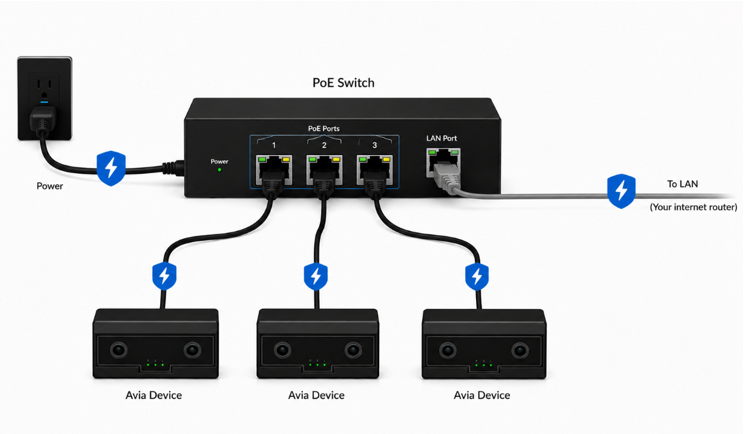
Use this option if your store already has a PoE-enabled network switch.
Mount the Avia device in position.
Run an Ethernet cable from the Avia device to the PoE switch.
Plug the cable into a PoE-enabled port on the switch.
The device should power on automatically.
Register the device: enter its serial number and installation height in Store Management (in the Avia app for Shopify). No mobile app needed; calibration runs after registration.
Connection example: Router / Network → PoE Switch → Avia Device
Option 2: Using a PoE injector
Use this if your store has a normal router or switch that does not provide PoE power. A PoE injector adds power to the Ethernet cable before it reaches the Avia device.
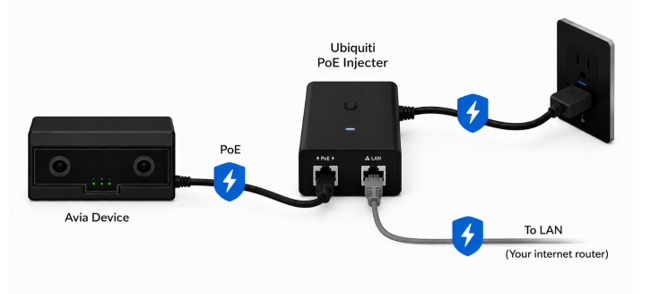
Connect an Ethernet cable from the router or network switch to the PoE injector.
Connect another Ethernet cable from the PoE injector to the Avia device.
Plug the PoE injector into power.
The Avia device should power on automatically.
Register the device: enter its serial number and installation height in Store Management (in the Avia app for Shopify). No mobile app needed; calibration runs after registration.
Connection example: Router / Network → PoE Injector → Avia Device
Power draw
The Avia device consumes between 3W and 6W, within the budget of a standard PoE switch port (802.3af).
If the device does not power on
Confirm the switch is PoE-enabled
If using a PoE injector, confirm the injector is plugged into power
Make sure the Ethernet cable is connected to the correct PoE port
Try another Ethernet cable if available
Check that the LED turns on within 30 seconds of connecting
Related articles
Need help?
If the device does not power on or connect through PoE after checking the cable, switch or injector, and network, contact Avia support at avia.support@retailogists.com and include:
Store name
Device serial number
Whether you are using a PoE switch or PoE injector
A photo of the PoE setup
Whether the device lights are on, blinking, or off
Was this helpful?
Still need help? Ask the team