Setting up a store in Avia
Assign your device to the right store with the correct serial number, height, hours, and Shopify link.
Before Avia can show accurate store data, each device must be assigned to the correct store location. This setup connects the physical Avia device to the right store, so traffic data, sales data, and opening hours are matched correctly in the dashboard.
Before you start
Access to the Avia app for Shopify (or the Avia portal for non-Shopify merchants)
The correct store location
The Avia device serial number
The store opening hours
The installation height of the device
Step 1: Add the store location
Go to Store Management and add the store location.
Info: On Shopify, Avia already has your location information (including addresses) from your Shopify account, so locations don't need to be created one by one. Merchants not on Shopify create each location manually in the Avia portal.
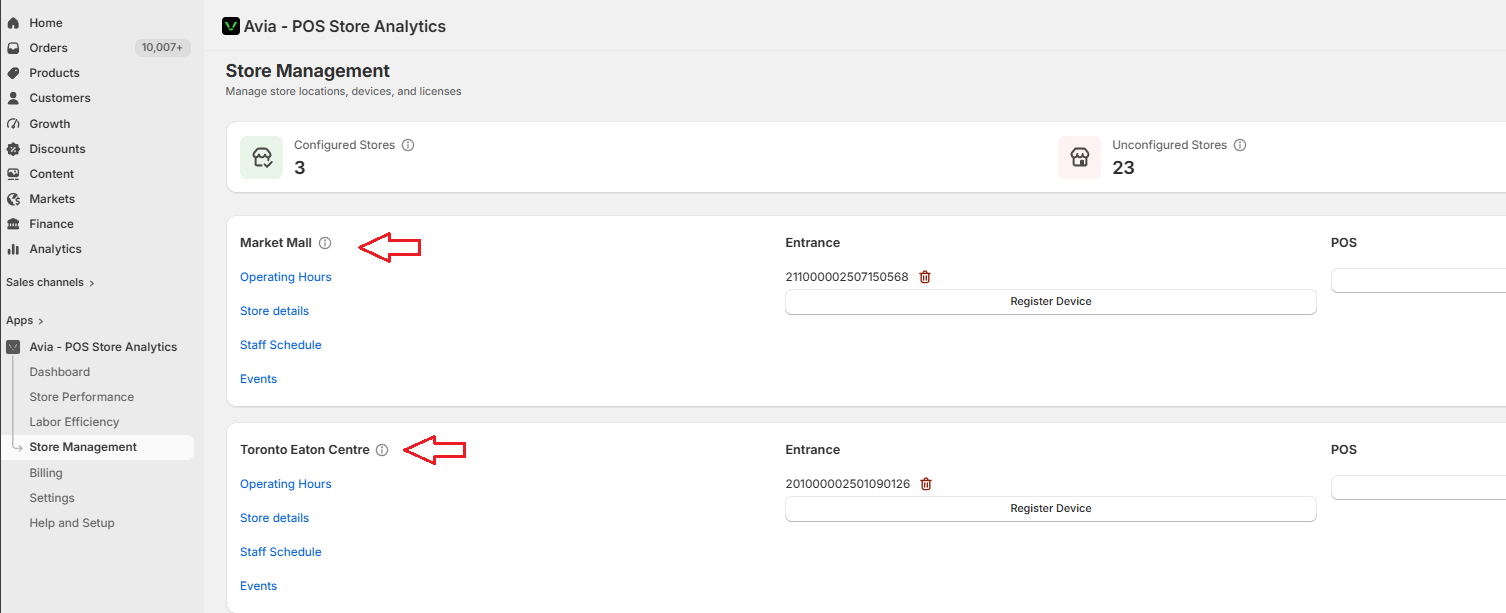
Make the store name clear and easy to recognize, especially if your account has multiple locations, e.g. "Paris Store", "London Soho", "New York Flagship". Clear names help avoid assigning a device to the wrong store.
Step 2: Add the device serial number and height
After creating or selecting the store, add the Avia device serial number under the correct location. The serial number links the physical device to the store in Avia. This is also where you enter the device's installation height.
In Store Management, click Add device next to the corresponding store. Then enter the device details:
Device type — keep this set to Entrance.
Device name — give it a clear, recognizable name, e.g. "Main Entrance". For a store with more than one device, name each by its door, e.g. "Front Door", "Door 1", "Door 2".
Device serial number — links the physical device to this store.
Mounting height — the installation height of the device.
Then click Save in the bar at the top of the Shopify admin to apply your changes.
Once the serial number and height are saved, calibration runs automatically, no mobile app needed.
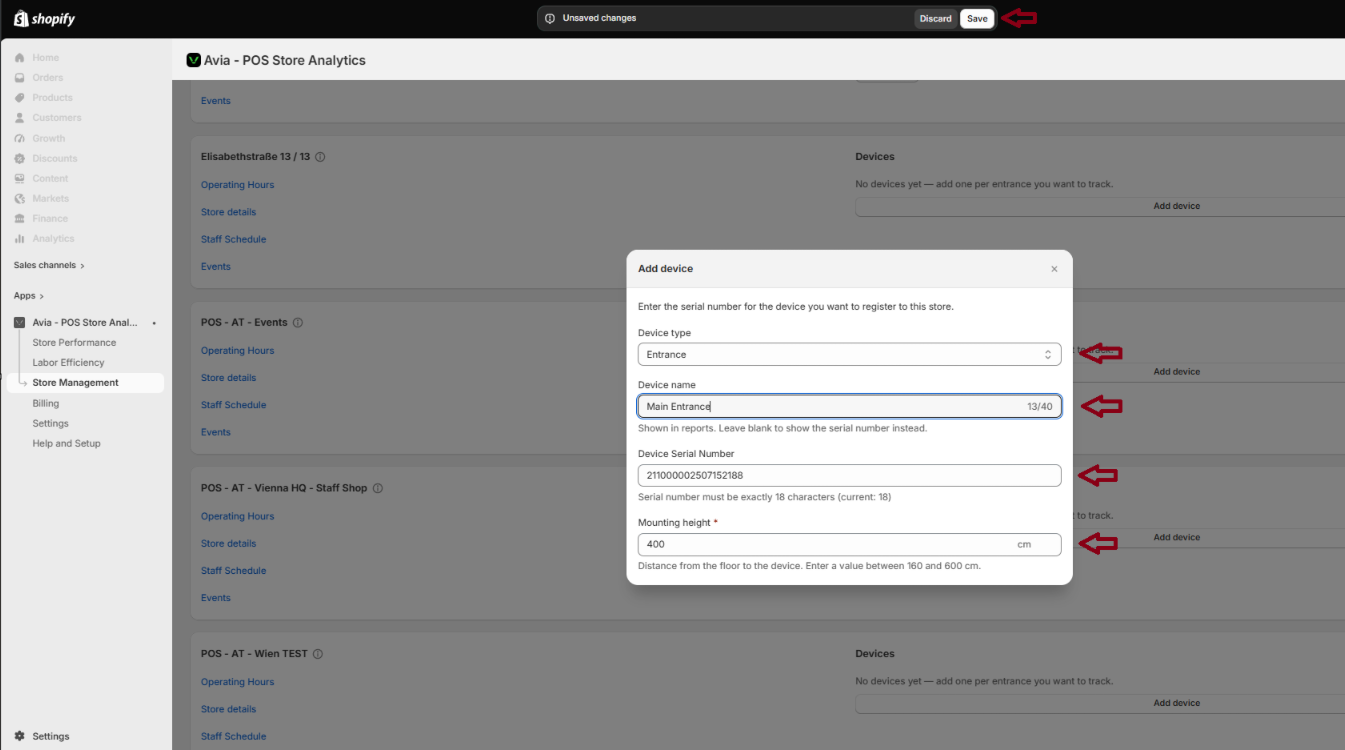
Warning: Make sure the serial number is entered correctly. If the wrong serial number is added, traffic data may not appear under the correct store.
Step 3: Configure opening hours
Add the store opening hours for the location.
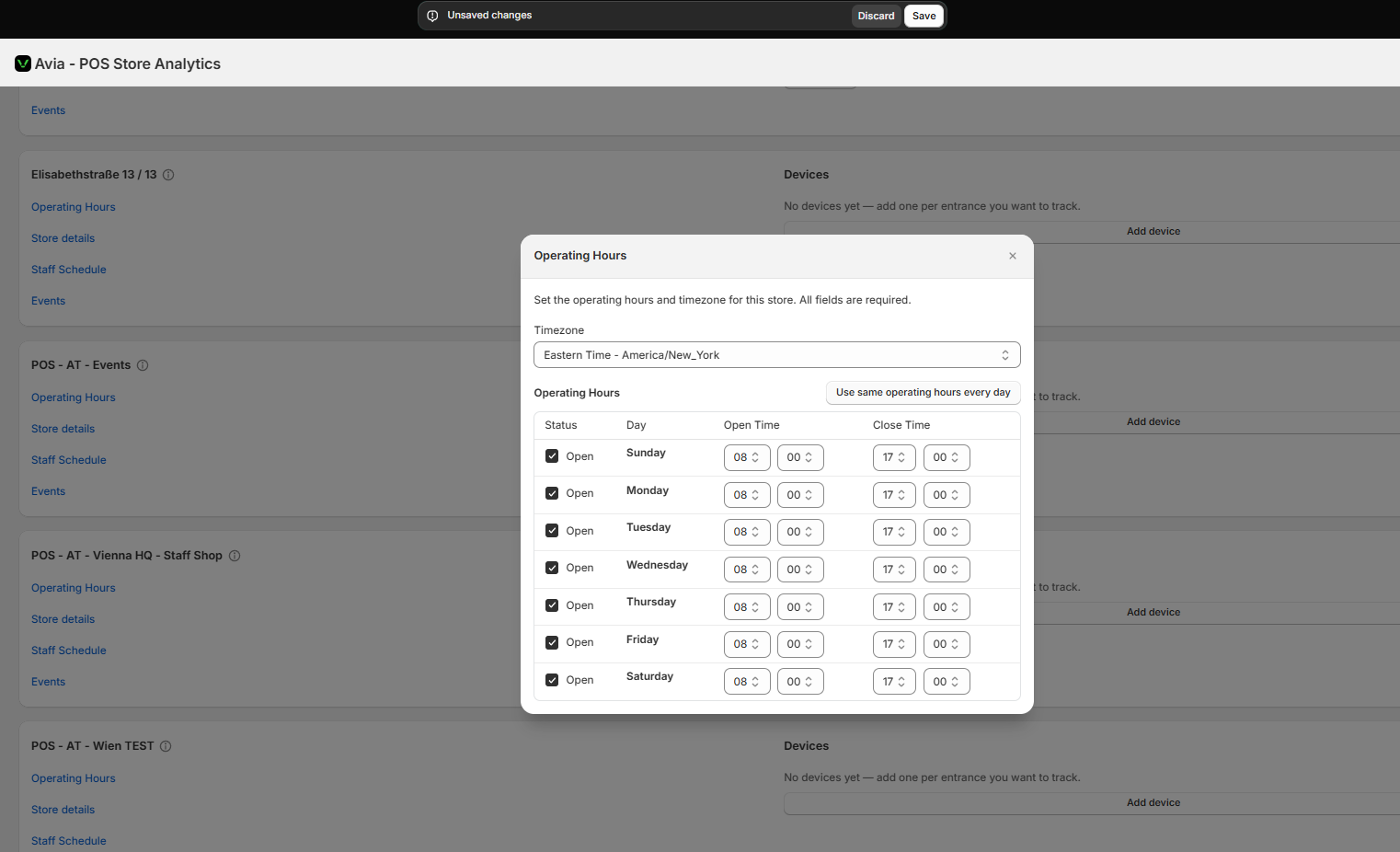
Opening hours tell Avia when the store is expected to be open and when traffic should be analyzed. Match the store's actual schedule, including weekday/weekend differences, and choose the correct time zone for the store location.
Step 4: Confirm Shopify connection
If your store uses Shopify, confirm that the correct Shopify store is connected. This allows Avia to combine traffic data from the device with sales data from Shopify. Check that:
The correct Shopify store is connected
The correct location is selected
The Avia device is assigned to the right store
Step 5: Review the setup
Confirm that:
The store name is correct
The device serial number is correct
The installation height is correct
Opening hours are accurate
Shopify is connected, if applicable
The device is assigned to the correct location
If the store, serial number, or opening hours are incorrect, dashboard data may appear under the wrong location or may not display as expected.
Related articles
Need help?
If you are not sure which serial number to use, or if store data is not appearing correctly, contact Avia support at avia.support@retailogists.com and include:
Store name
Device serial number
Shopify store URL, if applicable
A screenshot of Store Management, if available
Was this helpful?
Still need help? Ask the team